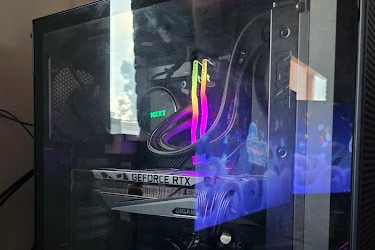
In today’s fast-paced digital world, a sluggish computer can be a significant hindrance to productivity and enjoyment. Whether you’re gaming, working on complex projects, or simply browsing the web, a slow machine can lead to frustration. One of the most effective ways to enhance your computer’s performance is by upgrading its Random Access Memory (RAM). This article will guide you through the process of installing RAM to increase your computer’s speed, covering everything from understanding RAM to the installation process and beyond.
Understanding RAM and Its Importance
What is RAM?
Random Access Memory (RAM) is a type of volatile memory that temporarily stores data for quick access by the CPU. Unlike hard drives or SSDs, which store data permanently, RAM loses its contents when the computer is turned off. The primary function of RAM is to provide the CPU with fast access to data and instructions, which is crucial for running applications smoothly.
Why is RAM Crucial for Performance?
The amount of RAM in your computer directly impacts its ability to multitask and run applications efficiently. Here are some key reasons why RAM is essential for optimal performance:
-
- Multitasking: More RAM allows your computer to handle multiple applications simultaneously without slowing down.
- Speed: Increased RAM can significantly reduce loading times for programs and files.
- Gaming: Many modern games require substantial RAM to run smoothly, especially when combined with high-resolution graphics.
Common Signs You Need More RAM
If you’re experiencing any of the following issues, it may be time to consider a RAM upgrade:
-
- Frequent system crashes or freezes
- Slow application loading times
- Lag during gaming or video editing
- High memory usage in Task Manager
Choosing the Right RAM for Your Computer
Types of RAM
Before purchasing RAM, it’s essential to understand the different types available:
-
- DDR (Double Data Rate): The most common type of RAM used in modern computers. Variants include DDR3, DDR4, and the latest DDR5, each offering improved speed and efficiency.
- SO-DIMM vs. DIMM: SO-DIMM is typically used in laptops, while DIMM is used in desktops. Ensure you choose the correct form factor for your device.
Compatibility Considerations
When selecting RAM, compatibility with your motherboard is crucial. Here are some factors to consider:
-
- Motherboard Specifications: Check your motherboard’s manual or manufacturer’s website for supported RAM types and maximum capacity.
- Speed: RAM speed is measured in MHz. Higher speeds can improve performance, but ensure your motherboard supports the desired speed.
- Capacity: Determine how much RAM you currently have and how much you can add. Most modern systems benefit from at least 16GB for optimal performance.
Preparing for Installation
Tools You’ll Need
Before diving into the installation process, gather the necessary tools:
-
- Screwdriver: Typically a Phillips-head screwdriver for opening your computer case.
- Anti-static wrist strap: To prevent static electricity from damaging components.
- Clean workspace: Ensure you have a clutter-free area to work in.
Safety Precautions
Taking safety precautions is vital to protect both yourself and your computer:
-
- Power Down: Always turn off your computer and unplug it from the power source before starting.
- Ground Yourself: Use an anti-static wrist strap or touch a grounded metal object to discharge any static electricity.
Step-by-Step Guide to Installing RAM (YOU SHOULD LET A PROFESSIONAL INSTALL THE RAM)
Step 1: Open Your Computer Case
-
- For desktops, locate the screws on the back of the case and remove them to access the interior.
- For laptops, consult the manual for instructions on how to safely open the case.
Step 2: Locate the RAM Slots
-
- Identify the RAM slots on your motherboard. They are typically long, thin slots located near the CPU.
- If all slots are occupied, you may need to remove existing RAM to make space for the new modules.
Step 3: Remove Existing RAM (if necessary)
-
- Gently push down on the clips at either end of the RAM module to release it.
- Carefully pull the module out of the slot, taking care not to touch the gold connectors.
Step 4: Insert the New RAM
-
- Align the notch on the RAM module with the key in the slot.
- Firmly press down until the clips click into place, securing the RAM.
Step 5: Close the Computer Case
-
- Replace the side panel of your case and secure it with screws.
- For laptops, reattach the back cover according to the manufacturer’s instructions.
Step 6: Power On and Check
-
- Plug your computer back in and power it on.
- Access the BIOS or operating system settings to verify that the new RAM is recognized.
Post-Installation: Optimizing Performance
Check System Performance
After installing the new RAM, monitor your system’s performance:
-
- Task Manager: Open Task Manager (Ctrl + Shift + Esc) to check memory usage and ensure the new RAM is recognized.
- Benchmarking Tools: Consider using benchmarking software to assess performance improvements.
Adjusting Settings for Optimal Use
To maximize the benefits of your new RAM, consider adjusting your system settings:
-
- Virtual Memory: Ensure your virtual memory settings are optimized to complement your RAM.
- Background Processes: Limit unnecessary background applications to free up RAM for essential tasks.
Troubleshooting Common Issues
RAM Not Recognized
If your computer does not recognize the new RAM, try the following:
-
- Reseat the RAM: Remove and reinsert the RAM modules to ensure a proper connection.
- Check Compatibility: Verify that the RAM is compatible with your motherboard.
System Crashes or Instability
If you experience crashes after installation, consider these steps:
-
- Run Memory Diagnostics: Use built-in tools like Windows Memory Diagnostic to check for issues.
- Check for Faulty RAM: If problems persist, one of the RAM modules may be defective.
Maintaining Your Computer’s Performance
Regular Upgrades
To keep your computer running smoothly, consider regular upgrades:
-
- Monitor Usage: Keep an eye on RAM usage and upgrade as needed.
- Stay Informed: Follow technology trends to know when to upgrade components.
Routine Maintenance
In addition to hardware upgrades, regular maintenance can enhance performance:
-
- Disk Cleanup: Regularly remove unnecessary files and applications.
- Software Updates: Keep your operating system and software up to date for optimal performance.
Upgrading your RAM is one of the most effective ways to enhance your computer’s speed and overall performance. By understanding the importance of RAM, choosing the right type, and following the installation process carefully, you can significantly improve your computing experience. Regular maintenance and monitoring will ensure that your system remains efficient and responsive for years to come. Embrace the power of RAM and enjoy a faster, more efficient computer!
We Repair and Upgrade PCs and Laptops
Our computer repair services quickly diagnose and resolve hardware and software issues to get your devices running smoothly again. Whether it’s virus removal, data recovery, or hardware fixes or upgrades, we provide reliable solutions tailored to your needs.
> Learn More
Contact us (305-833-5228) for a Free Consultation!
—

About ifix Computer Repair & Gaming PCs