


If your laptop or desktop computer feels slow, you might think it’s time to buy a new one. In many cases, that’s not necessary. One of the best upgrades you can make is replacing your old hard drive with a solid-state drive (SSD).
An SSD can make a noticeable difference in your computer’s everyday performance. Programs open faster, Windows boots quicker, and file transfers are near-instant. Even an older computer can feel much more responsive after the upgrade.
Many people continue to use traditional hard disk drives simply because they came pre-installed on their computers. While these drives still work, they are much slower than modern SSDs. As software becomes more demanding, older storage devices often become a bottleneck.
At iFix Deep Computer, we help customers improve the performance of laptops, desktops, and gaming PCs with professional SSD upgrades. Before installing a new drive, we check your computer, recommend the right storage option, and make sure everything works correctly after the installation.
In this guide, you’ll learn what an SSD is, how it works, the benefits of upgrading, and why it’s one of the best improvements you can make for your computer.
What Is an SSD?
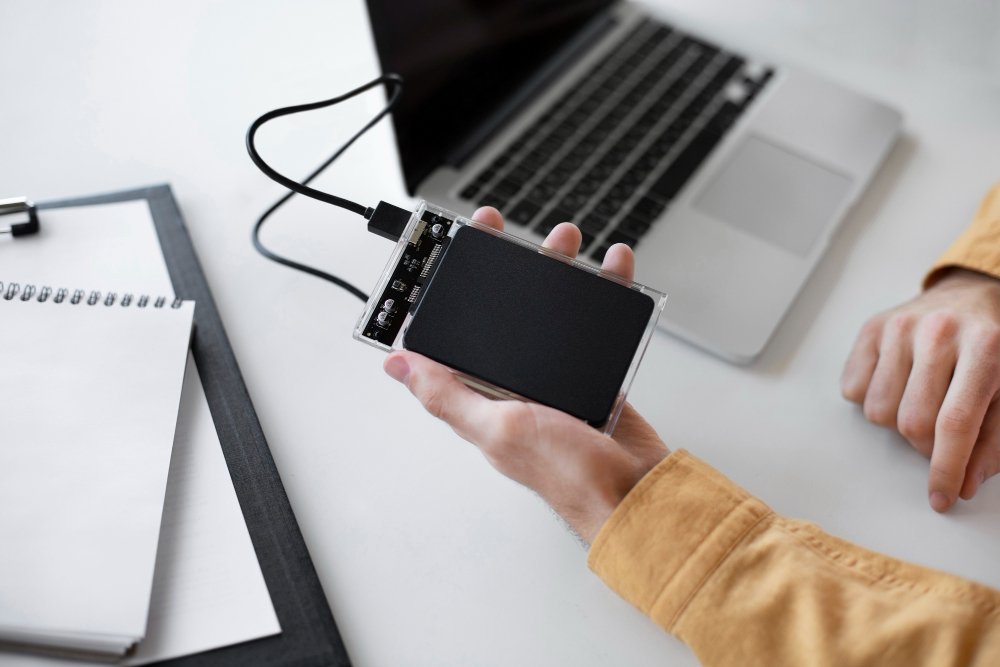
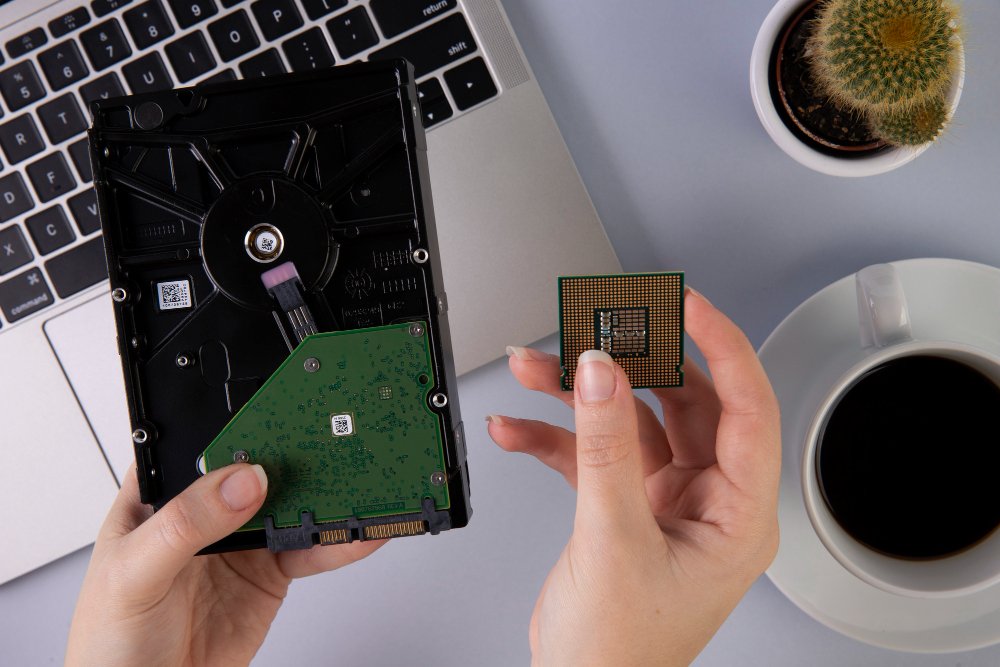
SSD stands for Solid State Drive. It is a storage device that holds your operating system, programs, games, and personal files.
Unlike traditional hard drives, SSDs have no moving parts.
Older hard drives use spinning disks and moving read heads to access data. Every time you open a file, the drive has to physically locate the information. This process takes time.
An SSD stores data using memory chips, allowing it to access files almost instantly.
Because there are no moving parts, SSDs are:
- Faster
- Quieter
- More reliable
- More energy efficient
- Better at handling everyday use
Today, SSDs are used in most new laptops and many desktop computers because of their speed and performance.
SSD vs Traditional Hard Drive
Understanding the difference between these two storage devices helps explain why an SSD upgrade makes such a big impact.
| No moving parts | Uses spinning disks |
| Fast startup times | Slower startup |
| Faster file transfers | Slower data access |
| Silent operation | Can make clicking or spinning sounds |
| Better shock resistance | More sensitive to drops and bumps |
| Uses less power | Uses more electricity |
| Runs cooler | Produces more heat |
Both devices store your files safely, but SSDs access and transfer data much faster.
Why Do Computers Become Slow?
Many people believe their processor is the reason their computer feels slow.
In reality, the storage drive is often responsible.
As your hard drive fills with files and gets older, it takes longer to read and write information.
This can cause:
- Slow startup
- Programs taking longer to open
- Delayed file transfers
- Longer loading screens
- Freezing during everyday tasks
Replacing the old drive with an SSD removes one of the biggest performance bottlenecks.
Benefits of Upgrading to an SSD
1. Faster Startup Time
One of the first things people notice after installing an SSD is how quickly Windows starts.
Instead of waiting several minutes, many systems boot in seconds.
This means less waiting every time you turn on your computer.
If you use your computer daily for work, school, or business, these saved minutes add up over time.
2. Programs Open Much Faster
Applications rely on your storage drive to load files.
With an SSD installed:
- Microsoft Office opens faster.
- Web browsers launch quickly.
- Photo editing software loads sooner.
- Video editing programs become more responsive.
- Everyday applications feel smoother.
You spend less time staring at loading screens and more time getting things done.
3. Better Overall Performance
Even if your computer isn’t brand new, an SSD can make it feel much more responsive.
Simple tasks become smoother, including:
- Browsing the internet
- Opening documents
- Watching videos
- Switching between programs
- Saving files
Instead of waiting for your computer to catch up, everything responds more quickly.
4. Faster File Transfers
Moving large files can take a long time on an older hard drive.
An SSD speeds up:
- Copying photos
- Moving videos
- Backing up documents
- Installing software
- Downloading large projects
This is especially helpful for students, photographers, designers, and video editors who work with large files every day.
5. Better Gaming Performance
An SSD won’t increase your graphics card’s power, but it does improve many parts of the gaming experience.
Games load faster.
Maps open sooner.
Updates install more quickly.
Many open-world games also load textures faster, reducing waiting times while exploring large environments.
For gamers, this creates a smoother overall experience.
6. Improved Multitasking
Many people keep several applications open at the same time.
For example:
- Browser
- Word documents
- Music
- Video calls
- Spreadsheet software
An SSD allows these programs to respond more quickly when switching between them.
Combined with enough RAM, your computer feels much smoother throughout the day.
7. More Reliable Than Traditional Hard Drives
Hard drives contain moving mechanical parts.
Over time, these parts wear down.
An SSD has no spinning disks or moving read heads.
This reduces the chance of mechanical failure caused by normal use.
While no storage device lasts forever, SSDs generally handle everyday activity very well.
8. Better for Laptops
Laptops move around constantly.
They travel in backpacks, cars, offices, classrooms, and homes.
Because SSDs have no moving parts, they handle bumps and movement much better than traditional hard drives.
This makes them a great choice for people who carry their laptop every day.
9. Longer Battery Life
An SSD uses less electricity than a traditional hard drive.
Since it needs less power to operate, laptops often gain a little extra battery life after upgrading.
While the improvement varies between devices, every bit helps when you’re away from a charger.
10. Quiet Operation
Hard drives sometimes make:
- Clicking noises
- Spinning sounds
- Grinding noises
An SSD works silently.
This creates a quieter environment, especially for students, office workers, and anyone who uses their computer for long periods.
Is an SSD Worth It for Older Computers?
Many older laptops and desktop computers still have plenty of life left.
Their biggest weakness is often the original hard drive.
Replacing it with an SSD can make an older system feel much newer without replacing the entire computer.
Many users notice improvements immediately after the upgrade.
If your processor and memory are still capable of handling your daily tasks, installing an SSD is often one of the most cost-effective upgrades available.
Different Types of SSDs
Not every SSD is the same.
The most common options include:
SATA SSD
This is the most common upgrade for older laptops and desktop computers.
It offers a significant speed improvement compared to traditional hard drives and is compatible with many existing systems.
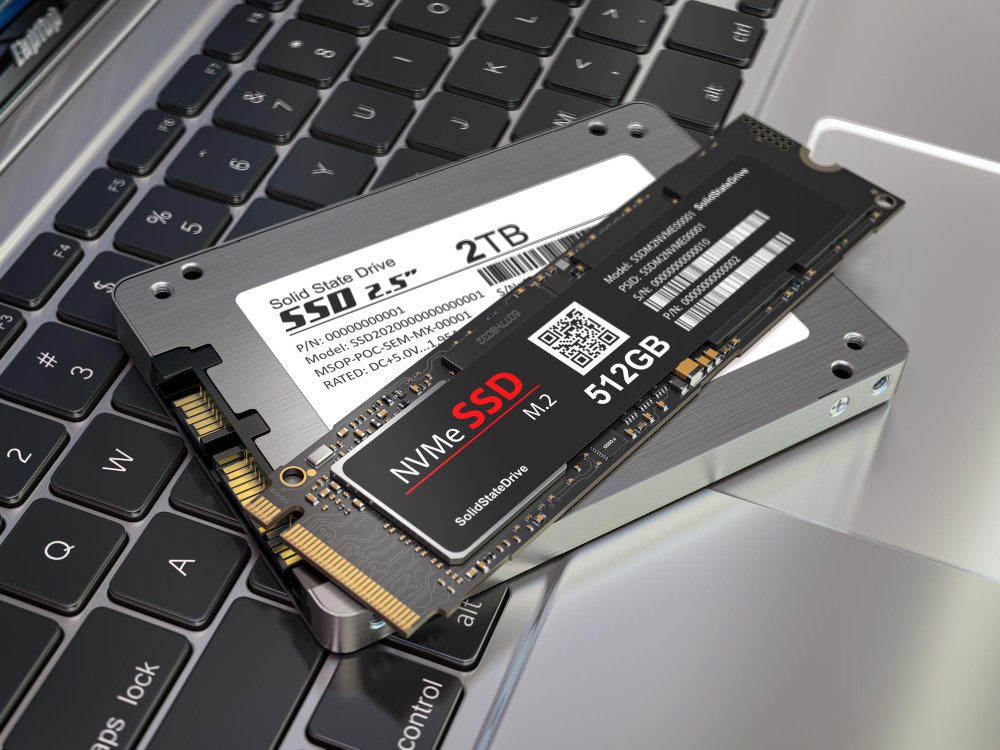
NVMe SSD
NVMe drives are much faster than SATA SSDs.
They connect directly to the motherboard and are commonly found in newer computers.
These drives are ideal for:
- Gaming
- Video editing
- Graphic design
- Professional workloads
- Large file transfers
Your computer must support NVMe before installing one.
How Do You Know If Your Computer Needs an SSD?
Some common signs include:
- Slow startup
- Programs taking too long to open
- Long loading screens
- Frequent freezing
- Slow file transfers
- Hard drive making unusual noises
- Computer feels slower than it used to
An inspection by a technician can determine if an SSD upgrade is the right solution.
Can You Upgrade Both Laptops and Desktop Computers?
Yes. Most laptops and desktop computers can be upgraded with an SSD. The type of SSD depends on your computer’s age and motherboard.
Older systems usually support SATA SSDs, while many newer laptops and desktops support faster NVMe SSDs.
Before installing a new drive, it’s important to check your computer’s compatibility. At iFix Deep Computer, we inspect your device and recommend the best SSD based on its specifications and your daily needs.
How Is an SSD Installed?
Installing an SSD is more than simply replacing one drive with another. The process should be done carefully to make sure your files and operating system continue to work properly.
A typical SSD upgrade includes:
- Checking your computer’s compatibility
- Choosing the correct SSD size and type
- Backing up important files
- Removing the old storage drive
- Installing the new SSD
- Installing or cloning the operating system
- Updating drivers if needed
- Testing the computer
- Checking overall performance
Once everything is complete, the computer is tested to make sure it is running smoothly.
Should You Clone Your Drive or Start Fresh?
There are two common ways to set up a new SSD.
Clone the Existing Drive
Cloning copies everything from your old drive to the new SSD.
This includes:
- Windows
- Programs
- Files
- Settings
- Documents
- Photos
This option allows you to continue using your computer without reinstalling everything.
Perform a Fresh Installation
Some people choose to install a clean copy of Windows.
A fresh installation removes old software, unnecessary files, and settings that may have built up over time.
This option can provide a clean start, but programs and files will need to be reinstalled or restored from a backup.
The best choice depends on the condition of your current system.
Choosing the Right SSD Capacity
SSDs are available in different storage sizes.
250GB SSD
Good for:
- Basic home use
- Internet browsing
- Office work
- Documents
500GB SSD
A popular option for many users.
Suitable for:
- Students
- Families
- Small businesses
- Everyday computer use
1TB SSD
Ideal for people who store larger files.
Good for:
- Gaming
- Photo editing
- Video editing
- Business data
- Large software libraries
2TB or More
Best for users who need plenty of storage space.
Suitable for:
- Professional video production
- Large game collections
- Graphic design
- Content creation
- Heavy workloads
Choosing the right capacity depends on how you use your computer and how much storage you need now and in the future.
Is an SSD Upgrade Better Than Buying a New Computer?
Many people assume a slow computer means they need a replacement.
In reality, an SSD upgrade is often enough.
If your processor, memory, and other components are still in good condition, replacing the old hard drive can improve performance at a much lower cost than purchasing a new computer.
A professional inspection can help determine if an upgrade is the better option.
Common Myths About SSD Upgrades
Myth 1: SSDs Are Only for Gamers
This is not true.
Anyone who uses a computer can benefit from faster storage.
Students, office workers, business owners, teachers, and home users all enjoy quicker performance.
Myth 2: My Computer Is Too Old
Many older computers can still use an SSD.
As long as the system supports the drive, upgrading can improve speed and make everyday tasks more enjoyable.
Myth 3: Installing an SSD Deletes Everything
Not always.
If your existing drive is cloned correctly, your files, settings, and programs will transfer seamlessly to the new SSD.
Backing up important files before any upgrade is always recommended.
Myth 4: More Storage Means More Speed
Storage capacity and speed are different.
A larger SSD gives you more space for files, but performance depends on the drive’s technology and your computer’s overall hardware.
Simple Tips to Keep Your SSD Performing Well
Although SSDs require less maintenance than traditional hard drives, a few simple habits can help keep your computer running smoothly.
- Keep Windows updated.
- Leave some free storage space on the drive.
- Install software updates regularly.
- Remove programs you no longer use.
- Use reliable antivirus software.
- Back up important files.
- Shut down your computer properly.
- Avoid downloading files from unknown websites.
These habits support both your SSD and your computer’s overall health.
Signs Your Current Hard Drive May Be Failing
A failing hard drive should not be ignored.
Watch for signs such as:
- Clicking noises
- Slow startup
- Frequent freezing
- Files taking a long time to open
- Missing files
- Error messages
- Windows failing to load
- Computer restarting unexpectedly
If you notice any of these problems, back up your important data as soon as possible and have your computer inspected.
Why Professional Installation Matters
Installing an SSD may seem simple, but every computer is different.
Professional installation helps avoid problems such as:
- Installing the wrong SSD type
- Incorrect drive setup
- Data loss
- Operating system issues
- Driver problems
- Boot errors
- Loose internal connections
Experienced technicians can also test your computer after the upgrade to make sure everything is working properly.
Why Choose iFix Deep Computer for SSD Upgrades?
At iFix Deep Computer, we help customers improve the performance of laptops, desktop computers, and gaming PCs with quality SSD upgrades.
Our services include:
- SSD installation
- Computer diagnostics
- Data transfer
- Windows installation
- Storage upgrades
- Performance optimization
- Laptop repairs
- Desktop computer repairs
- Gaming PC upgrades
- Hardware inspections
We take the time to inspect every system, recommend the right storage option, and ensure your computer performs at its best before it leaves our workshop.
Conclusion
An SSD upgrade is one of the most effective ways to improve the speed and performance of a laptop or desktop computer. Faster startup times, quicker file transfers, smoother multitasking, and shorter loading times can make everyday computer use much more enjoyable.
For many people, replacing an old hard drive with an SSD is a practical alternative to buying a new computer. It can give an older system a fresh start and extend its useful life without the higher cost of a full replacement.
At iFix Deep Computer, we provide professional SSD upgrades, computer diagnostics, laptop repairs, desktop repairs, and gaming PC services. Our team will inspect your system, recommend the right upgrade, and make sure everything is working properly before you take your computer home.