


Every computer creates heat while it is running. The harder your computer works, the more heat it produces. Tasks like gaming, video editing, graphic design, and running multiple programs at once make the processor work harder, which increases its temperature.
Keeping your computer cool is important for both performance and the lifespan of its components. While many people know about cooling fans and air vents, few understand the role of thermal paste. This small layer of material plays a critical role in keeping your processor at a safe temperature.
Without thermal paste, heat cannot move efficiently from the processor to the cooler. This can lead to higher temperatures, slower performance, unexpected shutdowns, and even damage to important hardware over time.
At iFix Deep Computer, we inspect cooling systems as part of our computer repair and maintenance services. Replacing old thermal paste is essential to helping laptops, desktop computers, and gaming PCs perform better.
In this guide, you’ll learn what thermal paste is, how it works, why it matters, and when to replace it.
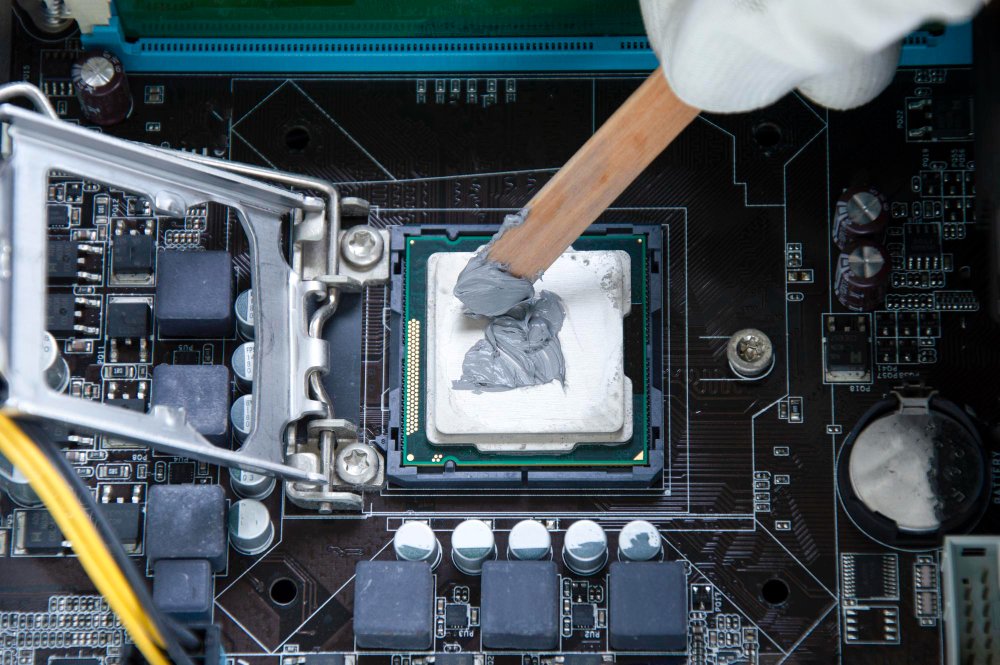
What Is Thermal Paste?
Thermal paste is a special material placed between the computer’s processor (CPU) and its cooler.
It is also called:
- Thermal compound
- Thermal grease
- CPU paste
- Heat sink paste
Although these names are different, they all refer to the same material.
Thermal paste helps transfer heat away from the processor so the cooling system can remove it more effectively.
Without it, the processor would become much hotter during normal use.
Why Does a Computer Produce Heat?
Every time your computer performs a task, the processor executes those instructions.
Simple tasks include:
- Opening a web browser
- Writing documents
- Watching videos
- Checking email
More demanding tasks include:
- Gaming
- Video editing
- Photo editing
- Programming
- 3D rendering
- Live streaming
The harder the processor works, the more heat it generates.
That heat needs to move away from the processor quickly.
If it stays trapped, temperatures rise, and performance suffers.
Why Isn’t the CPU Cooler Enough?
Many people assume the metal cooler sitting on top of the processor is enough.
The answer is no.
Although both surfaces appear smooth, they contain tiny imperfections that cannot be seen with the naked eye.
When the processor and cooler are placed together, tiny air gaps remain.
Air is a poor conductor of heat.
Thermal paste fills these small gaps.
Instead of heat becoming trapped in pockets of air, it moves more easily from the processor into the cooler.
This allows the cooling fan to remove heat more efficiently.
How Does Thermal Paste Work?
The process is simple but very important.
Step 1
The processor creates heat while running programs.
Step 2
The heat reaches the surface of the processor.
Step 3
Thermal paste transfers the heat to the CPU cooler.
Step 4
The heat sink spreads the heat across its metal fins.
Step 5
Cooling fans push the warm air away from the computer.
Without thermal paste, this process becomes much less efficient.
Why Thermal Paste Is Important
A very small amount of thermal paste can make a big difference.
It helps:
- Reduce processor temperature
- Improve cooling efficiency
- Prevent overheating
- Support stable performance
- Extend hardware life
- Reduce thermal throttling
Although you rarely see thermal paste after installation, it works every second your computer is turned on.
Benefits of Thermal Paste
1. Helps Lower CPU Temperatures
The biggest benefit is better heat transfer.
Lower processor temperatures help your computer stay stable during both light and demanding workloads.
A cooler processor also places less stress on surrounding components.
2. Helps Prevent Overheating
When temperatures become too high, your computer may begin protecting itself by reducing performance.
This is called thermal throttling.
If temperatures continue rising, the system may restart or shut down completely.
Good thermal paste helps reduce this risk.
3. Better Gaming Performance
Gaming pushes both the processor and graphics card for long periods.
A processor running at safe temperatures can maintain steady performance during extended gaming sessions.
This helps reduce performance drops caused by excessive heat.
4. Better Performance During Heavy Workloads
People who edit videos, create graphics, or work with large projects often keep their processors under heavy load.
Proper cooling helps these demanding tasks run more smoothly.
5. Helps Components Last Longer
Heat is one of the biggest causes of hardware wear over time.
Keeping temperatures under control helps reduce unnecessary stress on important parts inside your computer.
6. Helps Cooling Fans Work More Efficiently
If the processor stays cooler, cooling fans do not need to work as hard.
This often results in quieter operation and less wear on the cooling system.
Signs Your Thermal Paste May Need Replacing
Thermal paste does not last forever.
As it ages, it can dry out and lose its ability to transfer heat efficiently.
Watch for these signs.
Higher CPU Temperatures
If temperatures continue to rise even after cleaning dust from the computer, old thermal paste may be the cause.
Loud Cooling Fans
When the processor gets hotter, the cooling fans spin faster to remove extra heat.
If your fans seem louder than usual, poor heat transfer could be contributing to the problem.
Slower Performance
When processors become too hot, they automatically reduce speed to protect themselves.
This may cause:
- Slower applications
- Lower gaming performance
- Delays during multitasking
Unexpected Shutdowns
Very high temperatures may force the computer to shut down automatically.
This safety feature helps protect the processor from damage.
Computer Feels Hot
If your laptop becomes unusually warm during normal use, it may need its cooling system inspected.
The problem may involve dust, blocked airflow, faulty fans, or aging thermal paste.
How Long Does Thermal Paste Last?
There is no exact lifespan.
Its condition depends on:
- Computer usage
- Processor temperature
- Cooling quality
- Type of thermal paste
- Environmental conditions
Many computers continue working well for several years before the thermal paste needs replacing.
“Gaming PCs and computers used for demanding tasks may benefit from more frequent inspections because they generate more heat.
Different Types of Thermal Paste
Several types of thermal paste are available.
Ceramic Thermal Paste
A common option used in many computers.
It provides good performance and is suitable for everyday use.
Metal-Based Thermal Paste
Contains metal particles that improve heat transfer.
It should be applied carefully because some types conduct electricity.
Carbon-Based Thermal Paste
Offers strong cooling performance without electrical conductivity.
It is commonly used in gaming and high-performance systems.
Choosing the right thermal paste depends on your computer and cooling requirements.
Can Old Thermal Paste Cause Overheating?
Yes.
Old thermal paste dries out and becomes less effective.
When this happens, heat cannot move efficiently from the processor to the cooler.
As temperatures increase, you may notice:
- Reduced performance
- Higher fan speeds
- More heat
- Random shutdowns
- Thermal throttling
Replacing worn thermal paste often improves temperatures when combined with a clean cooling system.
How Is Thermal Paste Replaced?
Replacing thermal paste is a careful process. It is not just about adding a new layer. The old paste must be removed completely before the new paste is applied.
The basic process includes:
- Turn off the computer and disconnect the power.
- Remove the CPU cooler.
- Clean the old thermal paste from both the processor and the cooler.
- Apply a small amount of new thermal paste.
- Reinstall the CPU cooler with even pressure.
- Test the computer and check CPU temperatures.
Using the correct amount is important. Too much or too little can reduce cooling performance.
Can You Replace Thermal Paste Yourself?
Some experienced computer users replace thermal paste at home, but it is not always the best choice for everyone.
Modern laptops and gaming PCs have delicate internal parts. Removing the cooling system without the right tools or experience can damage components.
If the cooler is not installed correctly after replacing the paste, the processor may overheat even faster.
If you are unsure, hiring a professional can help you avoid unnecessary problems.
Common Mistakes When Replacing Thermal Paste
Many cooling problems stem from simple mistakes during installation.
Applying Too Much Paste
A thick layer of thermal paste does not improve cooling. Excess paste can spread beyond the processor and complicate cleanup.
Applying Too Little Paste
Using too little paste leaves small air gaps between the processor and the cooler. These gaps reduce heat transfer and make cooling less effective.
Not Cleaning the Old Paste
Old thermal paste should always be removed before applying a new layer. Mixing old and new paste can reduce its effectiveness.
Touching the Paste
Touching thermal paste with your fingers can introduce dirt and oils, which may affect how well it transfers heat.
Installing the Cooler Incorrectly
If the CPU cooler is not tightened evenly, it may not make proper contact with the processor. This can lead to higher temperatures and unstable performance.
Does Every Computer Use Thermal Paste?
Yes. Almost every desktop computer and laptop with a standard processor uses thermal paste or another thermal interface material between the processor and its cooling system.
This includes:
- Home computers
- Office desktops
- Gaming PCs
- Workstations
- Business laptops
Without a proper thermal interface, the processor would not cool efficiently.
Laptop vs Desktop Thermal Paste
The purpose of thermal paste is the same in both laptops and desktop computers, but their cooling systems differ significantly.
Laptop Cooling
Laptops have limited internal space, so their cooling systems are compact. Because of this, even a small cooling issue can cause temperatures to rise quickly.
If thermal paste becomes dry, laptops may experience:
- High temperatures
- Loud cooling fans
- Reduced performance
- Unexpected shutdowns
Desktop Cooling
Desktop computers usually have larger coolers and better airflow.
Although desktops generally stay cooler than laptops, thermal paste still wears out over time and should be checked during maintenance.
Does Thermal Paste Help Gaming PCs?
Yes.
Gaming PCs place heavy demands on the processor during long gaming sessions.
Modern games, streaming software, voice chat, and background applications all increase CPU workload.
Good thermal paste helps the cooling system move heat away from the processor more efficiently.
This supports:
- Stable gaming performance
- Better cooling
- Lower processor temperatures
- Reduced fan noise
- Longer gaming sessions without overheating
Other Ways to Keep Your Computer Cool
Thermal paste is only one part of a good cooling system.
You should also:
Clean Dust Regularly
Dust blocks airflow and reduces cooling performance.
Cleaning fans, vents, and filters every few months helps your computer stay cooler.
Keep Air Vents Open
Do not place your computer inside a closed cabinet or directly against a wall.
Proper airflow allows cool air to enter and warm air to leave the system.
Check Cooling Fans
Make sure all fans are spinning correctly and are free from dust.
A faulty fan should be replaced as soon as possible.
Keep the Room Cool
A cooler room helps your computer cool more effectively, especially during long gaming or work sessions.
Avoid Blocking Laptop Vents
Using a laptop on soft surfaces like beds or pillows can block air vents.
A flat, hard surface allows better airflow underneath the device.
Signs Your Computer Needs a Cooling Inspection
You should have your computer inspected if you notice:
- High CPU temperatures
- Loud fan noise
- Slow performance
- Frequent freezing
- Random shutdowns
- Blue screen errors
- Overheating during gaming
- Hot air constantly blowing from the vents.
These signs may point to old thermal paste, dust buildup, failing fans, or another cooling problem.
Why Regular Computer Maintenance Matters
Replacing thermal paste is only one part of keeping your computer in good condition.
Regular maintenance may include:
- Internal cleaning
- Dust removal
- SSD upgrades
- RAM upgrades
- Cooling system inspection
- Fan testing
- Temperature monitoring
- Hardware diagnostics
- Software updates
Routine maintenance helps reduce the chance of unexpected breakdowns and keeps your computer performing well.
Why Choose iFix Deep Computer?
At iFix Deep Computer, we help customers keep their laptops, desktop computers, and gaming PCs running efficiently.
Our services include:
- Thermal paste replacement
- Computer diagnostics
- Internal cleaning
- Cooling system repairs
- Laptop repairs
- Desktop computer repairs
- SSD upgrades
- RAM upgrades
- Custom gaming PC builds
- Performance optimization
Every computer is carefully inspected before repairs begin. This helps us identify the real cause of overheating and recommend the right solution.
Conclusion
Thermal paste may be a small part of your computer, but it plays an important role in keeping the processor cool. By filling the tiny gaps between the CPU and its cooler, thermal paste helps move heat away more efficiently and supports stable performance during everyday use.
As thermal paste ages, it becomes less effective. This can lead to higher temperatures, louder fans, slower performance, and even unexpected shutdowns. Replacing old thermal paste at the right time, along with keeping the cooling system clean, can help your computer run more smoothly and reduce unnecessary stress on important components.
If your laptop, desktop computer, or gaming PC is running hotter than usual, experiencing increased fan noise, or slowing down during demanding tasks, it may be time for a cooling inspection.
At iFix Deep Computer, we provide thermal paste replacement, cooling system maintenance, computer repairs, upgrades, and diagnostics to help keep your devices performing at their best.