


Your computer stores some of your most important information. From family photos and work documents to banking details and personal accounts, it holds data you don’t want to lose. That is why protecting your computer from viruses and malware should be part of your regular computer care.
Many people think viruses only affect old computers or happen because of poor-quality devices. The truth is that any laptop or desktop connected to the internet can become infected if the right precautions are not taken.
A virus or malware infection can slow down your computer, damage files, steal personal information, or even stop your system from working properly. Some infections happen quietly in the background, while others show clear warning signs such as pop-up windows, unexpected crashes, or programs that refuse to open.
The good news is that many infections can be prevented with a few simple habits. Safe browsing, regular updates, reliable antivirus software, and careful downloading all help reduce the risk.
At iFix Deep Computer, we help customers remove viruses, repair infected computers, and improve system security. In this guide, you’ll learn what viruses and malware are, how they spread, warning signs to watch for, and practical steps to keep your computer protected.
What Is a Computer Virus?
A computer virus is a harmful program that spreads from one file or computer to another.
It is designed to:
- Damage files
- Change computer settings
- Slow down performance
- Delete information
- Spread to other devices.
Like a biological virus, a computer virus needs a way to spread. It often attaches itself to files, email attachments, or downloaded software.
Once it enters your computer, it can begin causing problems.
What Is Malware?
Malware is a general term used for different types of harmful software.
A virus is one type of malware, but there are many others.
Examples include:
- Viruses
- Ransomware
- Spyware
- Adware
- Trojans
- Worms
- Keyloggers
Each type works differently, but they all have one thing in common—they are designed to harm your computer or steal information.
How Do Viruses and Malware Spread?
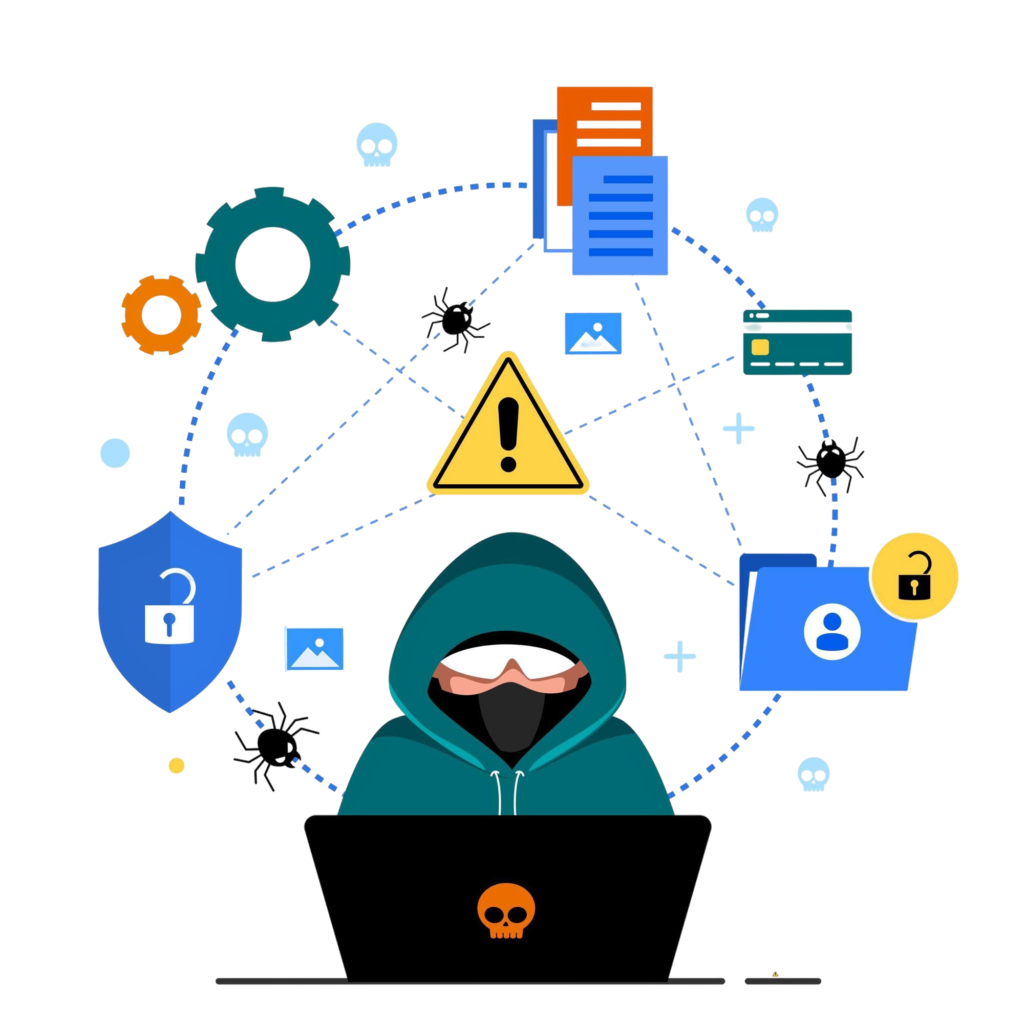
Many infections occur when users unknowingly open unsafe files or visit malicious websites.
Some common ways malware spreads include:
- Downloading software from unknown websites
- Opening suspicious email attachments
- Clicking fake advertisements
- Installing unofficial games or programs
- Connecting infected USB drives
- Visiting unsafe websites
- Downloading fake software updates
Knowing how infections spread is the first step in avoiding them.
Signs Your Computer May Have a Virus
Some infections are easy to notice, while others work quietly in the background.
Watch for these warning signs.
Slow Performance
If your computer suddenly becomes much slower than usual, malware may be using system resources behind the scenes.
Programs may take longer to open, and simple tasks may feel unusually slow.
Unexpected Pop-Up Windows

Frequent pop-up advertisements are often a sign of adware or another unwanted program.
If pop-ups appear even when your browser is closed, your computer should be checked.
Programs Keep Crashing
Viruses can damage system files and interfere with normal software.
You may notice:
- Programs closing unexpectedly
- Games crashing
- Applications freezing
- Windows becoming unstable
Browser Redirects
If your browser keeps opening websites you did not choose, malware could be changing your browser settings.
This is a common sign of browser hijacking.
Unknown Programs
If new applications appear without your permission, malware may have installed additional software.
Never ignore programs you do not recognize.
Antivirus Stops Working
Some malware tries to disable antivirus protection to avoid detection.
If your antivirus suddenly stops working or cannot update, it may be a sign of infection.
High Internet Activity
Malware sometimes sends information over the internet without your knowledge.
If your internet connection seems unusually busy even when you are not using it, your computer should be inspected.
Why Viruses Are Dangerous
Many people believe a virus simply makes a computer slow.
In reality, infections can cause much more serious problems.
A virus may:
- Delete important files
- Damage Windows
- Steal passwords
- Record keyboard activity
- Lock your files
- Slow the computer
- Install more malware
- Spread across a network.
The sooner an infection is removed, the lower the chance of permanent damage.
Keep Windows Updated
One of the easiest ways to improve computer security is by installing Windows updates.
Updates often include:
- Security improvements
- Bug fixes
- Performance improvements
- Protection against newly found threats
Many attacks target computers running outdated software.
Installing updates regularly helps reduce these risks.
Use Reliable Antivirus Software
Antivirus software scans your computer for harmful files.
It helps:
- Detect viruses
- Remove malware
- Block unsafe downloads
- Warn about dangerous websites.
Keep your antivirus updated so it can recognize newer threats.
Avoid Downloading Software From Unknown Websites
Free software can sometimes come with hidden malware.
Always download programs from official websites or well-known sources.
Be careful with:
- Free games
- Cracked software
- Pirated movies
- Fake utilities
- Unofficial installers
Saving money is never worth risking your personal files or damaging your computer.
Be Careful With Email Attachments
Email remains one of the most common ways malware spreads.
Never open attachments if:
- You don’t know the sender.
- The message looks suspicious.
- The email asks for personal information.
- The file type seems unusual.
- The message creates pressure to act immediately.
If something doesn’t look right, delete the email or confirm with the sender before opening anything.
Use Strong Passwords
Weak passwords make it easier for attackers to access your online accounts.
Choose passwords that:
- Are long
- Include uppercase and lowercase letters.
- Include numbers
- Include symbols
- Are different for every account
Avoid using birthdays, names, or simple words that are easy to guess.
Turn On Two-Factor Authentication
Many online accounts offer two-factor authentication.
This adds an extra security step when logging in.
Even if someone learns your password, they still need the second verification code to access your account.
This provides another layer of protection for email, banking, and social media accounts.
Scan USB Drives Before Opening Files
USB flash drives can carry viruses from one computer to another.
Before opening files:
- Scan the drive with antivirus software.
- Avoid opening unknown files.
- Remove suspicious content immediately.
This simple habit helps prevent accidental infections.
Back Up Your Important Files
No security system is perfect.
Keeping backups protects your important information if your computer becomes infected or your storage drive fails.
Good items to back up include:
- Photos
- Videos
- School work
- Business documents
- Tax records
- Personal files
Store backups on an external drive or a secure cloud storage service.
Watch Out for Fake Pop-Ups
Some websites display fake warnings such as:
“Your computer has a virus.”
“Click here to repair your system.”
“Your files are at risk.”
These messages are often scams.
Never download software or call phone numbers shown in these fake alerts.
Close the browser and run a scan using your own antivirus software instead.
Browse the Internet Safely
The websites you visit every day play a big role in your computer’s security.
Some websites are designed to spread malware or trick users into downloading infected files.
To browse more safely:
- Visit secure websites that use HTTPS.
- Avoid clicking unknown advertisements.
- Don’t download files from websites you don’t recognize.
- Close suspicious pop-up windows instead of clicking them.
- Double-check website addresses before entering passwords or payment details.
Being careful while browsing can prevent many infections before they start.
Understand How Ransomware Works
Ransomware is one of the most serious types of malware.
It locks your files and demands money to unlock them.
After an infection, you may lose access to:
- Documents
- Photos
- Videos
- Business files
- Personal records
Even if a payment is made, there is no guarantee the files will be restored.
The best protection against ransomware includes:
- Keeping regular backups
- Updating Windows
- Using antivirus software
- Avoiding suspicious downloads
- Being careful with email attachments
Be Careful When Using Public Wi-Fi
Public Wi-Fi networks are convenient, but they are not always secure.
When using public internet:
- Avoid online banking if possible.
- Don’t log in to important accounts on unsecured networks.
- Turn off file sharing.
- Use a VPN if available.
- Disconnect from public Wi-Fi when you’re finished.
These simple steps help reduce the risk of someone accessing your information.
Secure Your Home Wi-Fi Network
Your home internet connection should also be protected.
Here are a few good habits:
- Change the default router password.
- Use a strong Wi-Fi password.
- Enable WPA2 or WPA3 security if your router supports it.
- Keep your router’s software updated.
- Don’t share your Wi-Fi password with people you don’t know.
A secure home network protects every device connected to it.
Keep Your Web Browser Updated
Your web browser is one of the most frequently used programs on your computer.
Browser updates often include:
- Security fixes
- Better protection against harmful websites
- Improved stability
- Performance improvements
Most browsers update automatically, but it is still a good idea to check for updates from time to time.
Review Your Downloads
Over time, your Downloads folder can fill with files you no longer need.
Review this folder regularly and remove:
- Old installers
- Unknown files
- Duplicate downloads
- Programs you no longer use
Keeping your computer organized also makes it easier to spot files that don’t belong.
Watch for Phishing Scams
Phishing is a common online scam in which criminals impersonate legitimate companies or organizations.
You may receive an email or message asking you to:
- Confirm your password
- Update payment details
- Click a login link
- Download an attachment
Before responding, check the sender carefully.
If something seems unusual, contact the company directly via its official website rather than clicking the link in the message.
Teach Everyone in Your Home About Online Safety
A computer is only as secure as the people using it.
If family members also use the same computer, make sure they know how to stay safe online.
Talk about:
- Safe downloading
- Strong passwords
- Suspicious emails
- Fake websites
- Pop-up scams
- Safe internet browsing
Good habits from everyone help reduce the chance of infections.
Perform Regular Computer Maintenance
Good computer maintenance is another important part of staying secure.
Regular maintenance includes:
- Installing Windows updates
- Updating drivers
- Running antivirus scans
- Removing unused software
- Cleaning temporary files
- Checking storage health
- Backing up important data
A well-maintained computer is often more secure and performs better.
What Should You Do If Your Computer Gets Infected?
If you think your computer has a virus or malware, don’t panic.
Take these steps:
- Disconnect from the internet if possible.
- Avoid entering passwords or banking information.
- Run a full antivirus scan.
- Back up important files if they are still accessible.
- Avoid installing random “virus removal” tools from the internet.
- Contact a professional computer repair service if the infection remains.
The sooner the problem is handled, the better the chance of protecting your files.
Why Professional Virus Removal Matters
Some infections are difficult to remove without the right tools.
Professional technicians can:
- Remove viruses safely
- Eliminate malware
- Check for hidden threats.
- Repair damaged Windows files.
- Restore system performance
- Install security updates
- Make sure your computer is working properly again.
This helps reduce the chance of the infection returning.
Why Choose iFix Deep Computer?
At iFix Deep Computer, we help customers keep their computers secure and running smoothly.
Our services include:
- Virus removal
- Malware removal
- Computer diagnostics
- Windows troubleshooting
- Laptop repairs
- Desktop computer repairs
- SSD upgrades
- RAM upgrades
- Performance optimization
- Data protection advice
Every computer is carefully inspected to identify the source of the problem and recommend the right solution.
Whether your computer is running slowly because of malware or needs a complete system cleanup, our team is ready to help.
Conclusion
Viruses and malware can affect any computer, but many infections can be prevented with simple habits. Keeping Windows and your software updated, using antivirus protection, downloading files only from reliable sources, and being careful with emails and websites all help reduce the risk.
Regular backups are just as crucial. Even with good security, maintaining redundant copies provides peace of mind if the unexpected happens.
If your computer starts running slowly, shows unusual pop-ups, redirects your browser, or behaves differently than normal, don’t ignore the warning signs. Early action can prevent a small problem from becoming a much larger one.
At iFix Deep Computer, we provide virus removal, malware cleanup, computer repairs, system maintenance, and performance improvements for laptops, desktop computers, and gaming PCs. Our goal is to help keep your computer safe, reliable, and ready for everyday use.