


Introduction
If your computer is running slower than usual, you might assume it needs to be replaced. In many cases, that is not necessary. A simple hardware upgrade can make a big difference, and one of the most helpful upgrades is adding more RAM.
RAM allows your computer to handle everyday tasks efficiently, from running programs and switching applications to multitasking. If your computer does not have enough RAM, even simple jobs like opening a web browser or editing a document can feel slow.
Choosing the right RAM is not just about buying the largest amount you can afford. Your computer must support the RAM you install, and you also need to think about how you use your computer every day. A gaming computer has different needs than a home office computer, and a laptop may require different RAM than a desktop.
In this guide, you will learn what RAM is, how it works, the different types available, and how to choose the right one for your computer.
What Is RAM?
RAM stands for Random Access Memory. It is one of the main parts inside every computer.
RAM temporarily stores the information your computer is using while it is turned on. This allows the processor to quickly access the data it needs without waiting for information to load from the storage drive.
Think of RAM as your computer’s short-term workspace.
When you open a program, start a game, edit a photo, or browse the internet, your computer places the information into RAM so it can be accessed quickly.
When you turn off the computer, everything stored in RAM is cleared.
How Does RAM Work?
Every time you use your computer, the processor constantly requests information.
RAM provides that information much faster than a hard drive or even an SSD.
For example, when you open several browser tabs, listen to music, and work on a spreadsheet at the same time, RAM allows all of those tasks to stay active.
If there is not enough RAM available, the computer begins using storage space as temporary memory. Since storage drives are much slower than RAM, your computer becomes noticeably slower.
This is one reason why adding more RAM often improves performance.
Why RAM Is Important
RAM affects how smoothly your computer performs everyday tasks.
Having enough RAM helps with:
- Faster multitasking
- Quicker program switching
- Better gaming performance
- Smoother video editing
- Faster web browsing
- Better productivity
- Reduced freezing
RAM does not replace your processor or storage drive, but it allows your computer to use them more efficiently.
What Happens If You Do Not Have Enough RAM?
A computer with limited RAM often shows several warning signs.
These include:
- Programs taking a long time to open
- Slow switching between applications
- Frequent freezing
- Web browsers slowing down with many tabs open.
- Error messages about low memory
- Games stuttering during play
- Video editing software responding slowly.
Many people assume these problems mean the computer is old, but sometimes adding more RAM solves them.
Different Types of RAM
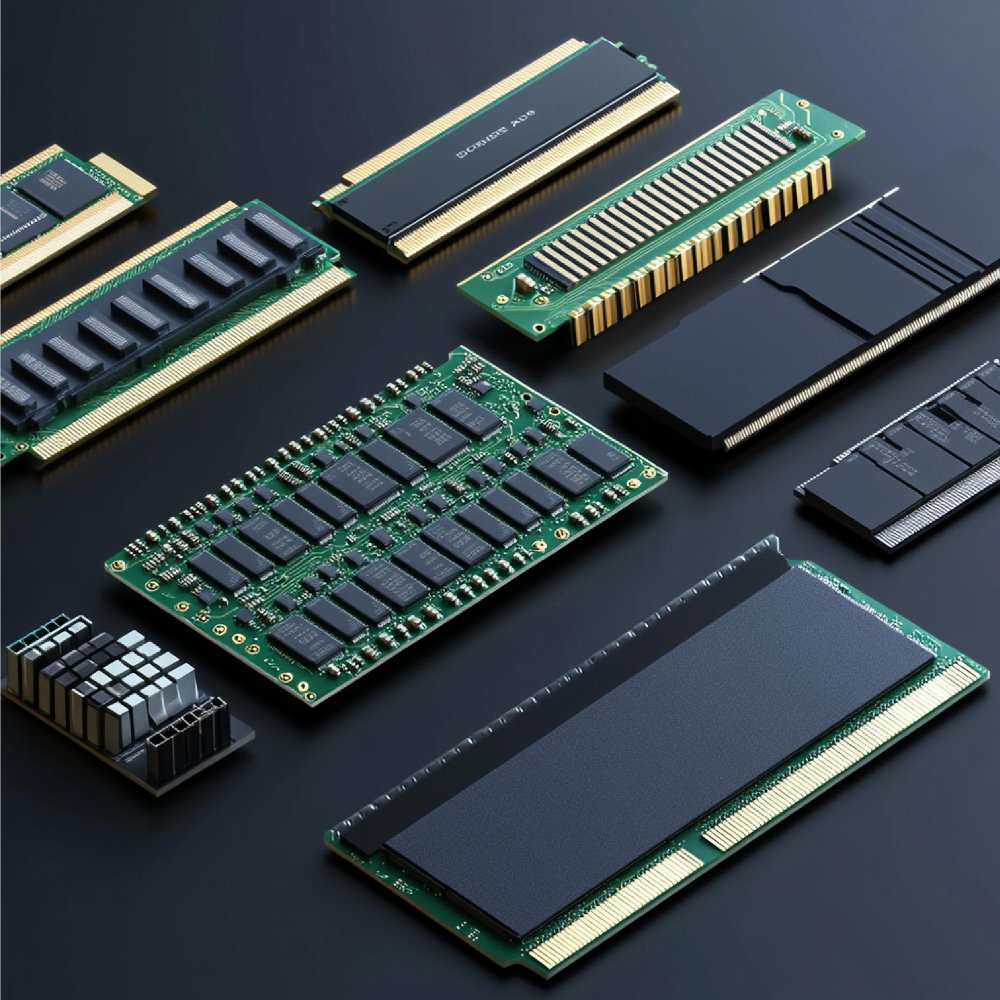
Not every computer uses the same type of RAM.
The most common types include:
DDR3 RAM
DDR3 was widely used in computers built several years ago.
It still works well for older systems, but modern motherboards no longer support it.
If your computer uses DDR3, you cannot upgrade to a newer generation without replacing the motherboard.
DDR4 RAM
DDR4 became the standard for many desktop and laptop computers.
It offers:
- Better speed
- Lower power usage
- Improved performance
- Higher memory capacities
Many computers currently in use still rely on DDR4 memory.
DDR5 RAM
DDR5 is the newest generation available for many modern systems.
It provides:
- Faster performance
- Higher bandwidth
- Better efficiency
- Support for larger memory sizes
Not every computer supports DDR5.
Before buying RAM, always check which generation your motherboard accepts.
Desktop RAM and Laptop RAM
Desktop and laptop computers usually use different RAM modules.
Desktop computers use larger memory sticks.
Laptops use smaller memory modules designed to fit into compact spaces.
Even if both use DDR4 or DDR5, desktop RAM cannot normally be installed in a laptop, and laptop RAM cannot usually be installed in a desktop.
Always purchase RAM designed for your specific type of computer.
How Much RAM Do You Need?
The amount of RAM you need depends on how you use your computer.
4GB RAM
This amount is suitable only for very basic tasks.
It can handle:
- Simple web browsing
- Basic document editing
Many users now find 4GB limiting.
8GB RAM
This is enough for many everyday users.
It works well for:
- Office work
- School assignments
- Video streaming
- Internet browsing
- Light photo editing
For many home users, 8GB provides a comfortable experience.
16GB RAM
This is one of the most popular choices today.
It is suitable for:
- Gaming
- Content creation
- Heavy multitasking
- Large spreadsheets
- Graphic design
- Running several applications together
Many people upgrading their computers choose 16GB because it provides room for future software requirements.
32GB RAM
People working with demanding software often choose 32GB.
Examples include:
- Professional video editing
- 3D rendering
- Engineering software
- Software development
- Virtual machines
This amount is usually more than most home users need.
64GB RAM and More
Higher capacities are generally used by professionals handling large workloads every day.
Most home users will not benefit from installing this much memory.
Understanding RAM Speed
RAM speed is another factor to consider.
It measures how quickly the memory transfers information.
Higher speed RAM can improve performance in certain workloads.
However, your motherboard and processor also determine the speed your computer can actually use.
Buying extremely fast RAM does not always provide better results if your hardware cannot support it.
Single Channel and Dual Channel RAM
Many computers support dual-channel memory.
Instead of using one memory stick, two matching sticks are installed.
This allows the computer to access memory more efficiently.
For example:
One 16GB stick provides 16GB.
Two matching 8GB sticks also provide 16GB, but they often perform better because they operate in dual-channel mode.
Using matching memory modules is generally recommended when possible.
Signs Your Computer Needs More RAM
If you notice any of these problems, your computer may benefit from a RAM upgrade.
- Slow startup
- Programs freezing
- Delays when opening files
- Slow multitasking
- Games losing performance
- Video editing becoming difficult.
- Frequent loading delays
- Browser slowing with multiple tabs.
These signs do not always mean RAM is the only problem, but they are good reasons to check your system.
RAM for Different Types of Users
Different people use computers in different ways.
Home Users
Most home users spend time:
- Browsing the internet
- Watching videos
- Shopping online
- Managing photos
- Paying bills
For these activities, 8GB or 16GB is often a good choice.
Students
Students commonly use:
- Word processing
- Online classes
- Research
- Video calls
- Presentations
A system with 8GB or 16GB helps handle these tasks comfortably.
Gamers
Games continue to become more demanding every year.
Many modern games perform well with 16GB of RAM.
Players who also stream gameplay or run multiple applications at once may benefit from additional memory.
Business Users
Office computers often run:
- Accounting software
- Video meetings
- Databases
- Multiple browser windows
Having enough RAM helps employees work more efficiently throughout the day.
Creative Professionals
People editing videos, designing graphics, creating animations, or producing music often use memory-intensive software.
Larger RAM capacities ensure smoother program performance and shorter waiting times.
Choosing Quality RAM
Not all memory modules are made to the same standard.
Choosing quality components helps improve stability and reliability.
It is also important to buy RAM that matches your existing hardware.
Mixing different memory types or unsupported speeds may lead to compatibility issues or prevent your computer from starting correctly.
Professional advice can help you choose compatible RAM that works properly with your motherboard and processor.
Check Your Computer Before Buying RAM
Before purchasing new RAM, it is important to know what your computer supports. Buying memory without checking compatibility can lead to wasted money and frustration.
Here are a few things to check.
RAM Type
Your computer will only support certain types of RAM.
For example, if your motherboard uses DDR4 memory, DDR5 memory will not fit or work. The same applies to older DDR3 systems.
Always confirm the correct RAM type before making a purchase.
Maximum RAM Capacity
Every motherboard has a limit on how much RAM it can support.
For example, some computers support up to:
- 16GB
- 32GB
- 64GB
- 128GB
Installing more than the supported limit will not improve performance because the computer cannot use it.
Number of RAM Slots
Open your computer specifications or check inside the case to see how many RAM slots are available.
Some systems have:
- Two RAM slots
- Four RAM slots
- Eight RAM slots on high-performance systems
If your RAM slots are full, you must replace the current modules to upgrade your capacity.
Can You Mix Different RAM Sizes?
Many people ask if they can mix different RAM sizes.
The answer is yes in some cases, but it is not always the best option.
For example, you may install:
- One 8GB stick with one 16GB stick
The computer may work, but it may not perform as efficiently as using two matching memory modules.
For the best results, use RAM with the same:
- Capacity
- Speed
- Brand
- Type
Matching memory usually provides better stability and performance.
Can You Mix Different RAM Speeds?
You can mix RAM speeds, but the faster module will automatically downclock to match the slower module.
For example:
If one stick runs at 3200MHz and another runs at 2666MHz, both may operate at 2666MHz.
Using matching speeds helps avoid compatibility issues.
ECC and Non-ECC RAM
Some people come across the terms ECC and Non-ECC while shopping for RAM.
ECC RAM
ECC stands for Error Correcting Code.
It is mainly used in:
- Servers
- Workstations
- Professional systems
It helps detect and correct certain memory errors.
Non ECC RAM
Most home computers, gaming PCs, and office desktops use Non-ECC RAM.
Unless your motherboard specifically supports ECC memory, Non-ECC RAM is usually the correct choice.
Does More RAM Always Make a Computer Faster?
Not always.
Adding RAM helps only if your current memory is limiting performance.
For example:
If your computer has only 4GB of RAM, upgrading to 16GB can make a noticeable difference.
However, upgrading from 32GB to 64GB may not improve everyday tasks like web browsing or watching videos.
The goal is to install enough RAM for your specific usage.
RAM and Gaming
RAM plays an important role in gaming performance.
Modern games use much more memory than older titles.
Having enough RAM helps with:
- Faster loading
- Smoother gameplay
- Better multitasking
- Improved game stability
- Running voice chat and streaming software at the same time
Many modern gaming PCs perform well with 16GB of RAM.
Gamers who stream, edit video, or multitask heavily will benefit from 32GB of RAM.
RAM for Content Creators
Content creators often use demanding software every day.
Examples include:
- Video editing
- Photo editing
- Animation
- Graphic design
- Music production
These programs often keep large amounts of data in memory.
More RAM helps reduce delays while editing large files.
RAM for Business Computers
Office computers also benefit from having enough memory.
Many employees work with:
- Accounting software
- Spreadsheets
- Video meetings
- Web browsers
- Business applications
“Running multiple programs simultaneously can quickly exhaust your memory.
A RAM upgrade can help employees work more efficiently throughout the day.
Common Mistakes When Buying RAM
Many people buy RAM without checking compatibility.
Some common mistakes include:
Buying the Wrong RAM Type
Always confirm your motherboard supports the memory you plan to install.
Buying More Than You Need
Installing the highest amount of RAM is not always necessary.
Choose memory based on your actual workload.
Ignoring Available RAM Slots
Check how many memory slots are free before ordering new RAM.
Mixing Different Memory Kits
Using different brands, speeds, or capacities may reduce performance or cause stability issues.
Forgetting About Other Hardware
RAM is only one part of the computer.
If your storage drive is failing or your processor is outdated, adding more RAM may not solve every performance problem.
Installing New RAM
Installing RAM is often straightforward, but care should always be taken.
Basic installation steps include:
- Turn off the computer.
- Disconnect the power cable.
- Open the computer case.
- Locate the RAM slots.
- Remove old memory if needed.
- Install the new RAM firmly.
- Close the case.
- Start the computer.
- Confirm the system recognizes the new memory.
If you are unsure, professional installation can help avoid accidental damage.
Keeping Your RAM Working Properly
RAM requires very little maintenance.
However, good computer care helps protect every component.
Helpful habits include:
- Keep dust out of the computer.
- Maintain proper airflow.
- Install Windows updates.
- Avoid overheating.
- Shut down the computer properly.
- Use a reliable power source.
Regular cleaning and proper maintenance protect your hardware investment for the long term.
When Should You Upgrade Your RAM?
You may want to upgrade if:
- Your computer freezes regularly.
- Programs take too long to open.
- Games stutter.
- Video editing feels slow.
- Your browser slows down with many tabs open.
- You regularly receive low memory warnings.
- Multitasking has become difficult.
If these problems appear, a RAM upgrade may be one of the most effective improvements you can make.
Why Professional Advice Matters
Choosing RAM is not always as simple as picking the largest number.
A technician can help you:
- Identify your current memory.
- Check motherboard compatibility.
- Recommend the correct capacity.
- Install the RAM correctly.
- Test the system after installation.
Professional guidance helps avoid buying the wrong components and ensures everything works as expected.
Why Choose iFix Deep Computer?
At iFix Deep Computer, we help customers get the best performance from their laptops, desktops, and gaming PCs.
Our services include:
- Computer diagnostics
- RAM upgrades
- SSD upgrades
- Desktop repairs
- Laptop repairs
- Custom gaming PC builds
- Performance optimization
- Hardware installation
- Software troubleshooting
Before recommending any upgrade, we inspect your system and explain the options that best fit your computer and the way you use it.
Our goal is to help you improve performance without replacing parts that are still working well.
Conclusion
RAM is one of the most important parts of any computer. It helps your system run programs smoothly, handle multiple tasks, and respond more quickly during everyday use. Choosing the right RAM is about more than buying the biggest upgrade. You need memory that matches your motherboard, processor, and the work you do every day.
For many users, upgrading RAM is an affordable way to improve computer performance and extend the life of a laptop or desktop. It can reduce slowdowns, improve multitasking, and make demanding programs run more smoothly.
If you are unsure which RAM is right for your computer, getting professional advice can save time and help you avoid compatibility problems. With the right upgrade, your computer can continue performing well for years to come.